Effective cost management is crucial for organizations, and New Relic offers deep visibility into your CCU usage. Additionally, implementing proactive mechanisms to alert and stay within budget can help manage costs effectively across the organization.
Understanding your default budget
Your default budget is set based on your contract commitment:
For single-tenant customers
Your default Organization Budget is set based on your contract commitment and reflects your SKU purchases. This budget updates monthly and provides a clear overview of your Compute Consumption Unit (CCU) commitments.
For multi-tenant customers
Your default Customer Budget operates at the customer level rather than the organization level. Your contract commitment happens at the customer level across multiple organizations. This budget encompasses all organizations under your customer profile.
You can also create organization level budgets for individual managed organizations.
Manage organization level budgets limits
Open Compute Budgets
In the user menu, select Administration > Compute Budgets.
Important
When you open the Compute Budgets landing page:
- Single-tenant customers see an Organization Budget by default, set based on your compute SKU contract commitment. It updates monthly and shows your Compute Consumption Unit (CCU) commitments.
- Multi-tenant customers see a Customer Budget by default, which encompasses all organizations under your managing organization. This budget is set based on your compute SKU contract commitment, updates monthly, and shows CCU usage across your customer profile.
Manage budget limits
Select Manage limits in the budget section.
- Single-tenant customers: The Edit Organization Budget page appears.
- Multi-tenant customers: The Edit Customer Budget page appears.
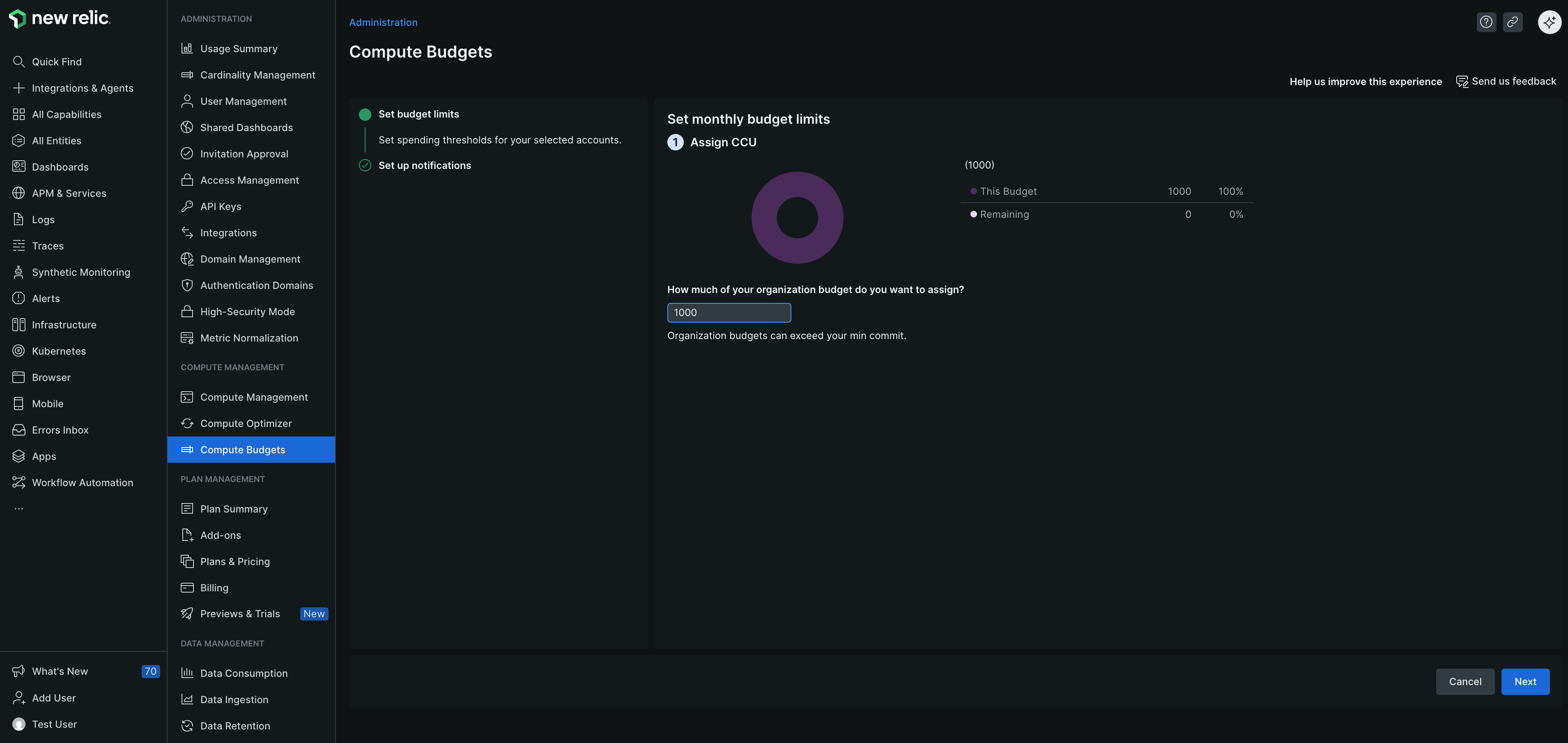
Manage monthly budget limits
To update the spending thresholds for your organization:
In the Set monthly budget limits section, specify the amount of compute CCU you want to track.
- Single-tenant customers: This applies to your Organization Budget.
- Multi-tenant customers: This applies to your Customer Budget.
Important
By default, we configure this based on your monthly contract commitments.
CCU types displayed: Depending on your purchase, you may see:
Advanced CCUs only
Core CCUs only
Legacy CCUs only
Both Advanced and Core CCUs
The fields shown depend on what compute SKUs your customer has.
Select Next.
Set up notifications
- To prevent overages and manage costs effectively, in the Set up organization budget notifications page, set the threshold percentage and choose the destination for notifications.
- To receive a warning when you've used a certain percentage of the CCU assigned to a budget for a specific month, in the Thresholds tab, select + Add a threshold and enter the percentage at which you want to receive notifications.
- To ensure notifications are sent when the budget exceeds the threshold, in the Destinations tab, add at least one person to be notified. You can choose from the following options:
- Email: Enter the email addresses of New Relic users to notify them about the budget.
- Webhook: Enter the webhook URL to send notifications to a specific endpoint.
- Select Finish.