preview
We're still working on this feature, but we'd love for you to try it out!
This feature is currently provided as part of a preview program pursuant to our pre-release policies.
This page provides a comprehensive reference for slack chat actions available in the workflow automation actions catalog. These actions enable you to slack messaging operations.
Prerequisites
Before using communication actions in workflow automation, ensure you have:
- A Slack workspace with appropriate permissions.
- A Slack bot token configured as a secret in workflow automation.
- Access to the Slack channels where you want to send messages.
Configure Slack integration
This section details the instructions for setting up a Slack application with the minimal scope permissions to allow the workflow automation Slack actions.
Create a Slack app
Go to the Slack API > Create New App > From Scratch
Give your app a name and select a workspace, then click Create App.
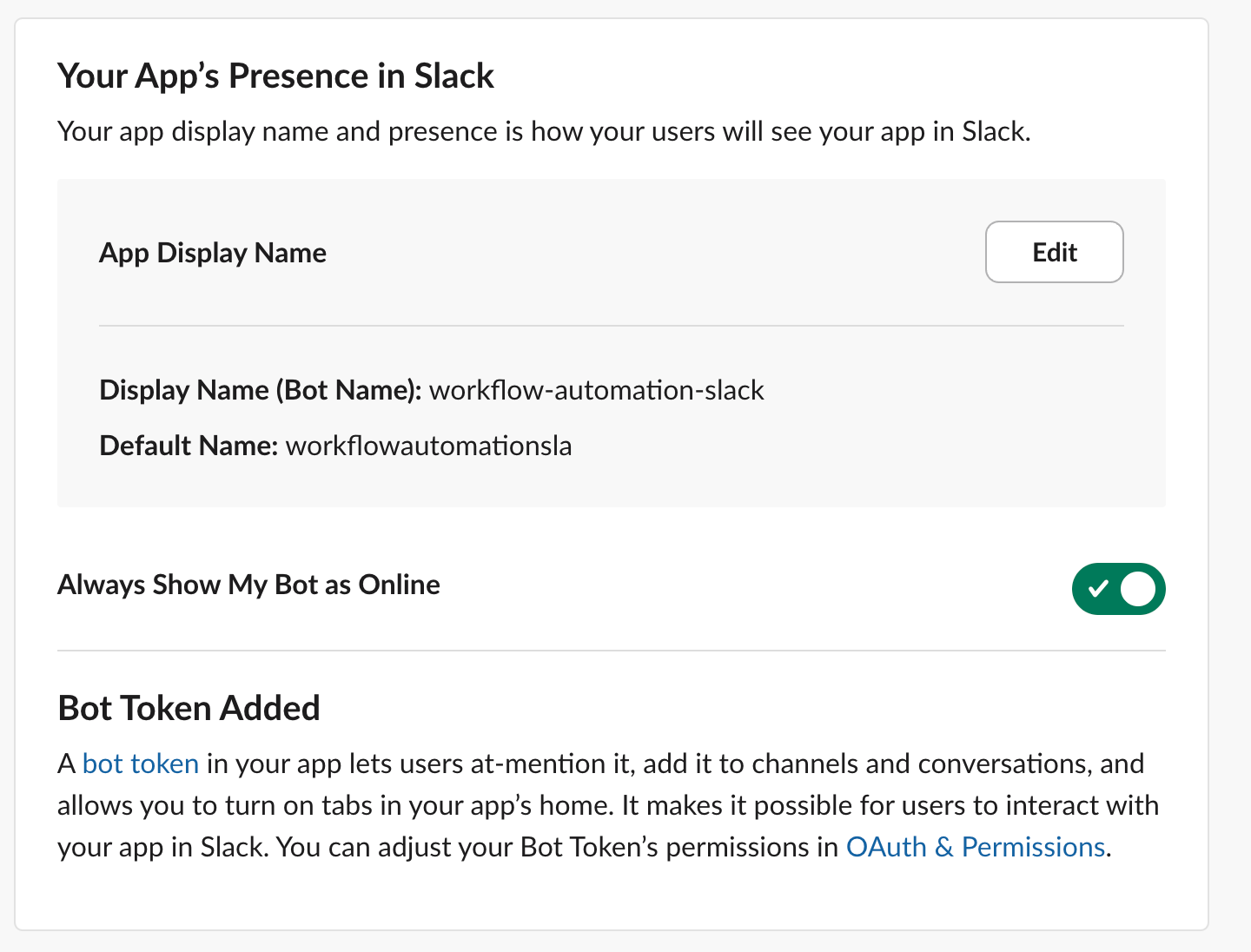
Upon creating, go to App Home on the left navigation and ensure your bot is online.
Configure OAuth permissions
On the left navigation, select OAuth & Permissions.
Scroll down to the Bot Token Scopes section, and add the following scopes to allow the workflow automation action usages:
chat:write- Required to post a messagereactions:read- Required to get reaction from a threadfiles:write- Required to upload a file attachment to a thread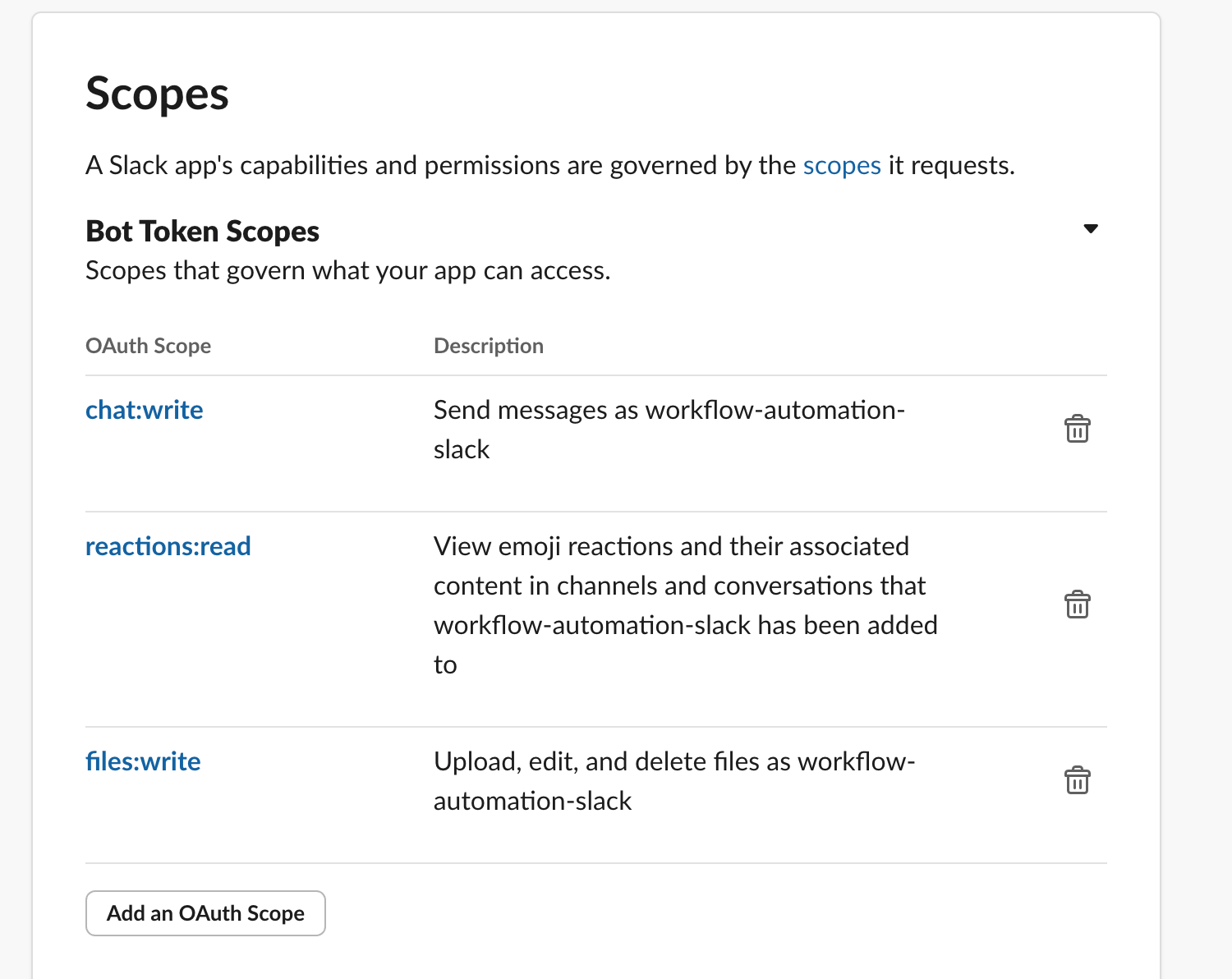
Scroll back up and click the Install to [workspace] button to start the OAuth setup with your Slack workspace.
You should see a confirmation prompt. Click Allow to confirm.
Upon success, copy the Bot token and keep it for the next step. The token should start with
xoxb-....
Add app to channels
Now that the Slack app is created and configured, add it to the Slack channel(s) you'd like to use by editing that channel's Integrations and adding the Slack app to it.
New Relic configuration
Once you've set up a Slack application and obtained a bot token, store this credential in New Relic secrets management using the GraphQL mutation below:
mutation { secretsManagementCreateSecret( scope: { type: ACCOUNT, id: "12345678" } namespace: "slack" key: "my-app-bot-token" description: "A slack token to send messages with newrelic workflow automation" value: "xoxb-..." ) { key }}Configure the following values:
id- Your New Relic account IDnamespace- Optional, use any alphanumeric string to categorize your secretkey- Use an alphanumeric string for referencing this secretdescription- Optional description for the secretvalue- The Slack bot token you copied from the previous step
You can execute this mutation using the NerdGraph GraphiQL explorer with your New Relic user API key. Once submitted successfully, you should see a result similar to this:
{ "data": { "secretsManagementCreateSecret": { "key": "my-app-bot-token" } }}Use the Slack token in workflows
Use the workflow automation feature by leveraging the Slack bot token secret stored with your namespace and key names.
Example:
name: to-slack
steps: - name: postCsv type: action action: slack.chat.postMessage version: 1 inputs: channel: test-channel-workflow text: "Hello World!" token: ${{ :secrets:slack:my-app-bot-token }}Conseil
If you didn't use a namespace, remove the :namespace part from the token input, like this: ${{ :secrets:my-app-bot-token }}