For organizations with multiple New Relic accounts, each with distinct CCU requirements, Compute Budgets provides per-account monitoring, visibility, and alerts to ensure accounts stay within their defined usage limits.
Budget types by customer structure
The type of budgets you can create depends on your customer structure:
For single-tenant customers
You can create account level budgets for individual accounts or groups of up to 5 accounts within your organization.
For multi-tenant customers
Managing organizations can create two types of budgets:
Organization level budgets: Budgets for individual managed organizations
- One budget per organization
- One organization per budget
- Create multiple organization level budgets as needed
Account level budgets: Budgets for accounts within the managing organization (same functionality as single-tenant customers)
Managed organizations can't create budgets.
중요
If you are part of a managing organization, you can create budgets for any managed organization under your customer hierarchy. Use the organization selector to choose the organization when creating an organization budget.
Set up account level budgets
Open Compute Budgets
- Go to one.newrelic.com.
- In the user menu, select Administration > Compute Budgets.
Create a budget
In the Functional budgets section, select Add a budget.
중요
For multi-tenant customers, this section displays:
Organization level budgets for managed organizations
Account level budgets for the managing organization
Managed organizations can't create account level budgets.
Assign your budget
Enter a name for your budget.
Select the accounts or organization for your budget:
For single-tenant or managing organization account level budgets: From the dropdown list, select and assign up to 5 accounts to this budget.
For multi-tenant organization level budgets: Select one organization from the dropdown. Each organization level budget can contain only one organization.
팁
When creating organization level budgets, use the organization selector to view and select the managed organization for your budget.
Select Next.
Set monthly budget limits
To set spending thresholds for your selected account, in the Set monthly budget limits section, assign the limits for the compute SKUs you've purchased to establish your account budget.
Select Next.
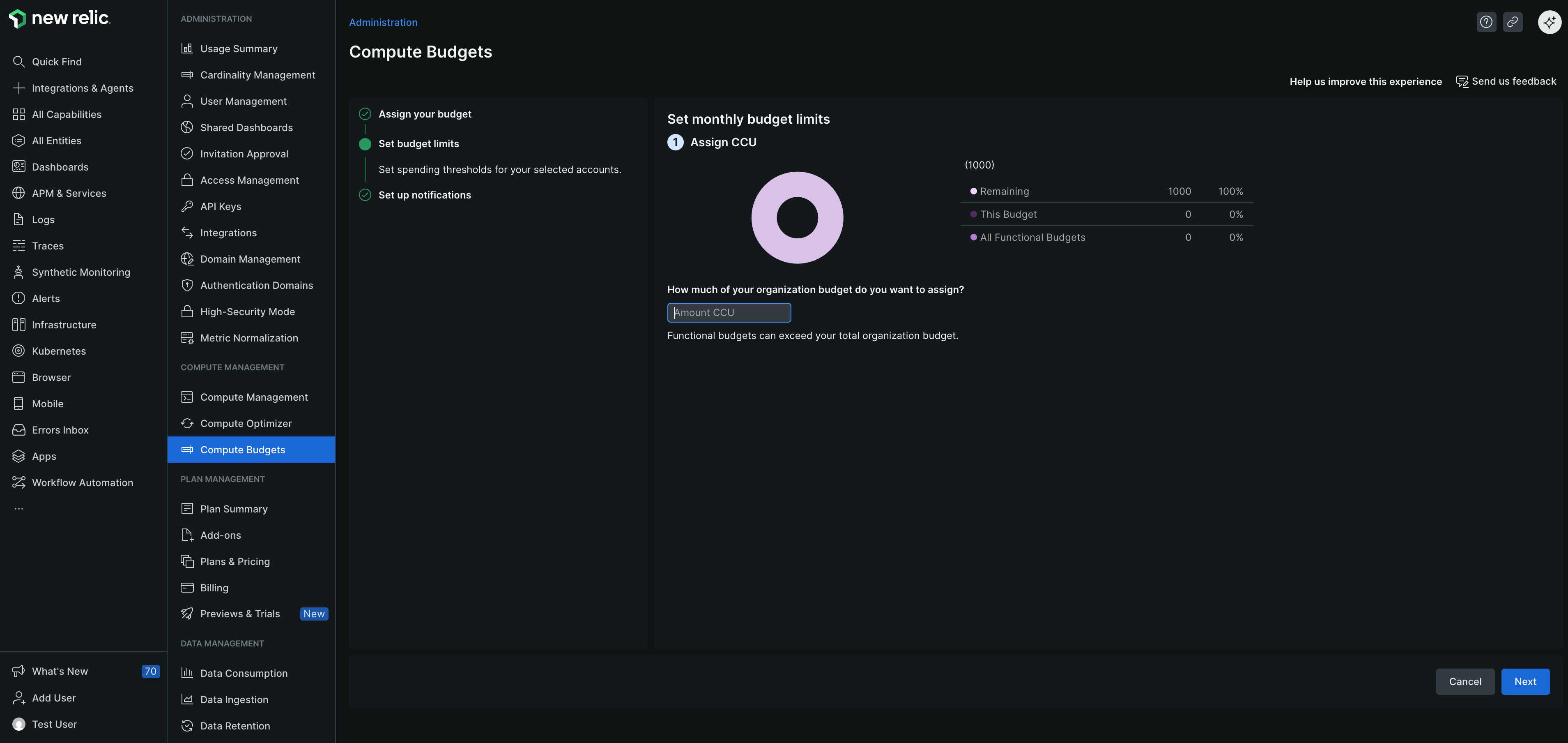
Set up notifications
- To prevent overages and manage costs effectively, in the Set up notifications page, set the threshold percentage and choose the destination for notifications.
- To receive a warning when you've used a certain percentage of the CCU assigned to a budget for a specific month, in the Thresholds tab, select + Add a threshold and enter the percentage at which you want to receive notifications.
- To ensure notifications are sent when the budget exceeds the threshold, in the Destinations tab, add at least one person to be notified. You can choose from the following options:
- Email: Enter the email addresses of New Relic users to notify them about the budget.
- Webhook: Enter the webhook URL to send notifications to a specific endpoint.
- Select Finish.
Review budget details
After you create the budget, view the details specific to the Compute SKUs on the Compute budgets page, as applicable and available to your order and account provisioning:
| Field name | Description |
|---|---|
| Budget name | Budget name. |
| Status | Current budget status. |
| Advanced CCU usage | Percentage of advanced CCU used. |
| Advanced CCU allocation | Advanced CCU assigned to this budget. |
| Core CCU usage | Percentage of core CCU used. |
| Core CCU allocation | Core CCU allocated to this budget. |
| CCU usage | Percentage of CCU used. |
| CCU limits | CCU allocated to this budget. |
View usage breakdown
To view the Usage breakdown, select the three-dots menu. You can access the following information as available:
- A detailed day-over-day breakdown of your CCU usage graph, tailored to the Compute SKUs you have.
- CCU usage categorized by Users, Accounts, and Capabilities.
- Details about the CCU, including the Budget name, associated accounts, and information such as Budget time range, Product, and Notification settings.