With our Nuxt dashboard, you can easily track your application error rate, initial page load average, route changes, throughput, and page views with JavaScript errors. Built with our infrastructure agent and our Vue , the Nuxt dashboard lets you view critical information all in one place.
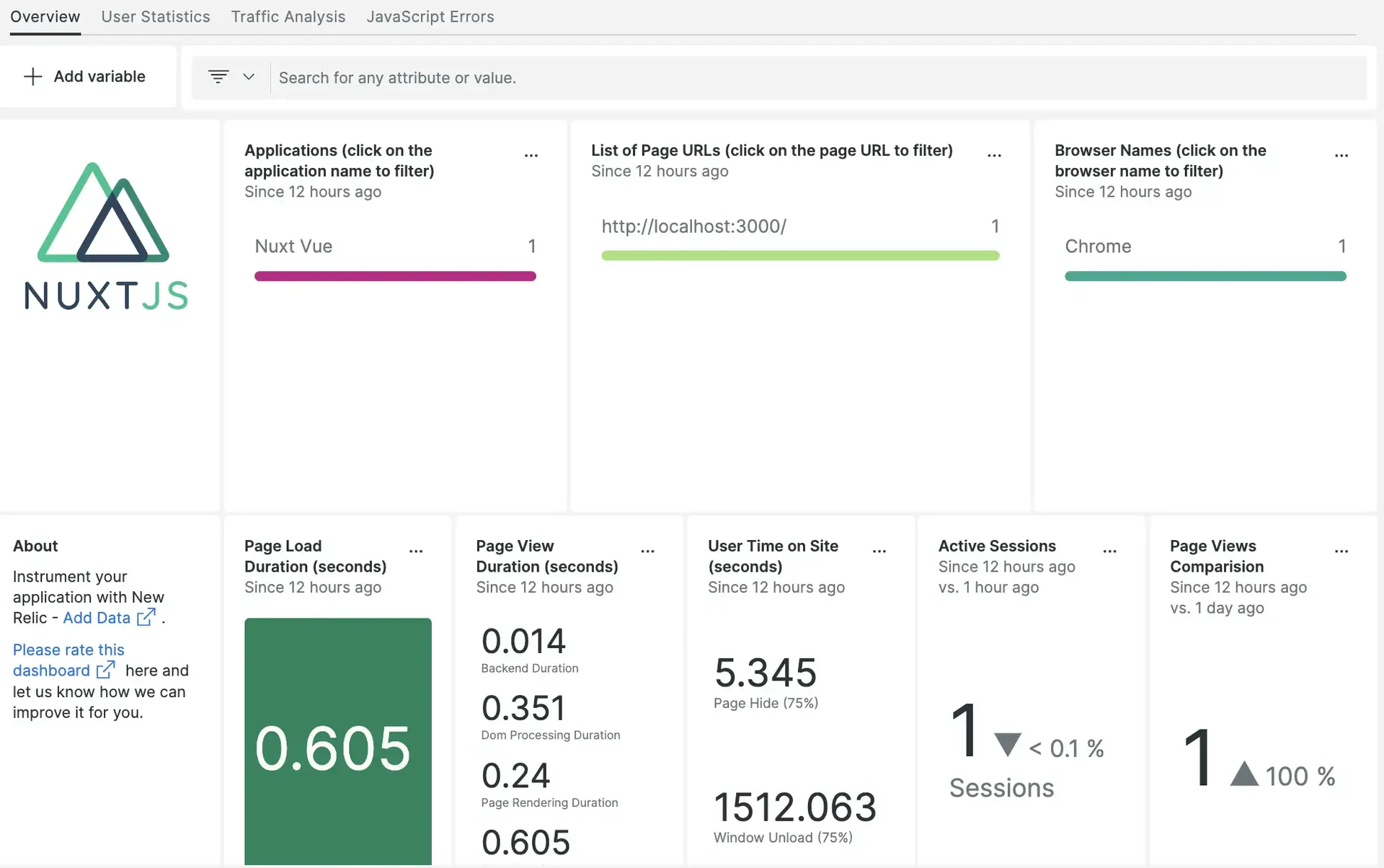
After setting up our Nuxt integration, we give you a dashboard for your Nuxt web app metrics.
Install
Optional: Install the infrastructure agent
Installing the infrastructure agent is optional, but doing this will get you important metrics about the host where your app is running.
To do this, follow the infrastructure agent install steps.
Install Nuxt browser monitoring
- From one.newrelic.com, go to the + Integrations & Agents page.
- Search for Nuxt. (Note: The Nuxt tile is not in the browser or mobile collection, so you'll need to use the search function.)
- Click on the Nuxt tile when it appears in the search results and follow the instructions to generate the JavaScript code snippet.
Configure the integration
To add the JavaScript snippet in the Nuxt application:
Create a JavaScript file in the
publicfolder of your Nuxt application:bash$touch public/<FILENAME>.jsCopy-paste the browser agent snippet into the new JavaScript file without the
<script>tags (just the snippet itself, there's no function to define):// PASTE THE GENERATED BROWSER AGENT SNIPPET HERE WITHOUT <script> TAGSOpen your
nuxt.config.js(ornuxt.config.ts) file and add the script to theapp.headsection:export default defineNuxtConfig({compatibilityDate: '2025-07-15',devtools: { enabled: true },app: {head: {script: [{src: "/<FILENAME>.js"},],},},})Restart your application.
In a couple of minutes, your application will send metrics to one.newrelic.com.
Monitor your application
Now, you should be able to see your application on one.newrelic.com by selecting Browser from the navigation bar. Choose your application to see all the metrics which are captured on the one.newrelic.com platform. You can also view the data with NRQL using the following query:
SELECT firstPaintFROM PageViewWhat's next?
To learn more about building NRQL queries and generating dashboards, check out these docs:
- Introduction to the query builder to create basic and advanced queries.
- Introduction to dashboards to customize your dashboard and carry out different actions.
- Manage your dashboard to adjust the display mode for your , or to add more content to your dashboards.