Configurar la carga de trabajo del sistema
Vaya a All entities > Workloads > + Create a workload. Para obtener más información, consulta Crear y definir workloads.
Sugerencia
Si no ve All entities en la navegación, vaya a one.newrelic.com > Catalogs y seleccione Switch back to all entities.
Ingrese un nombre para su workload y seleccione una cuenta de la lista desplegable.
Junto a Entity Type = All, seleccione el ícono + e ingrese
sap.system = {SAP System SID}en la barra de filtro.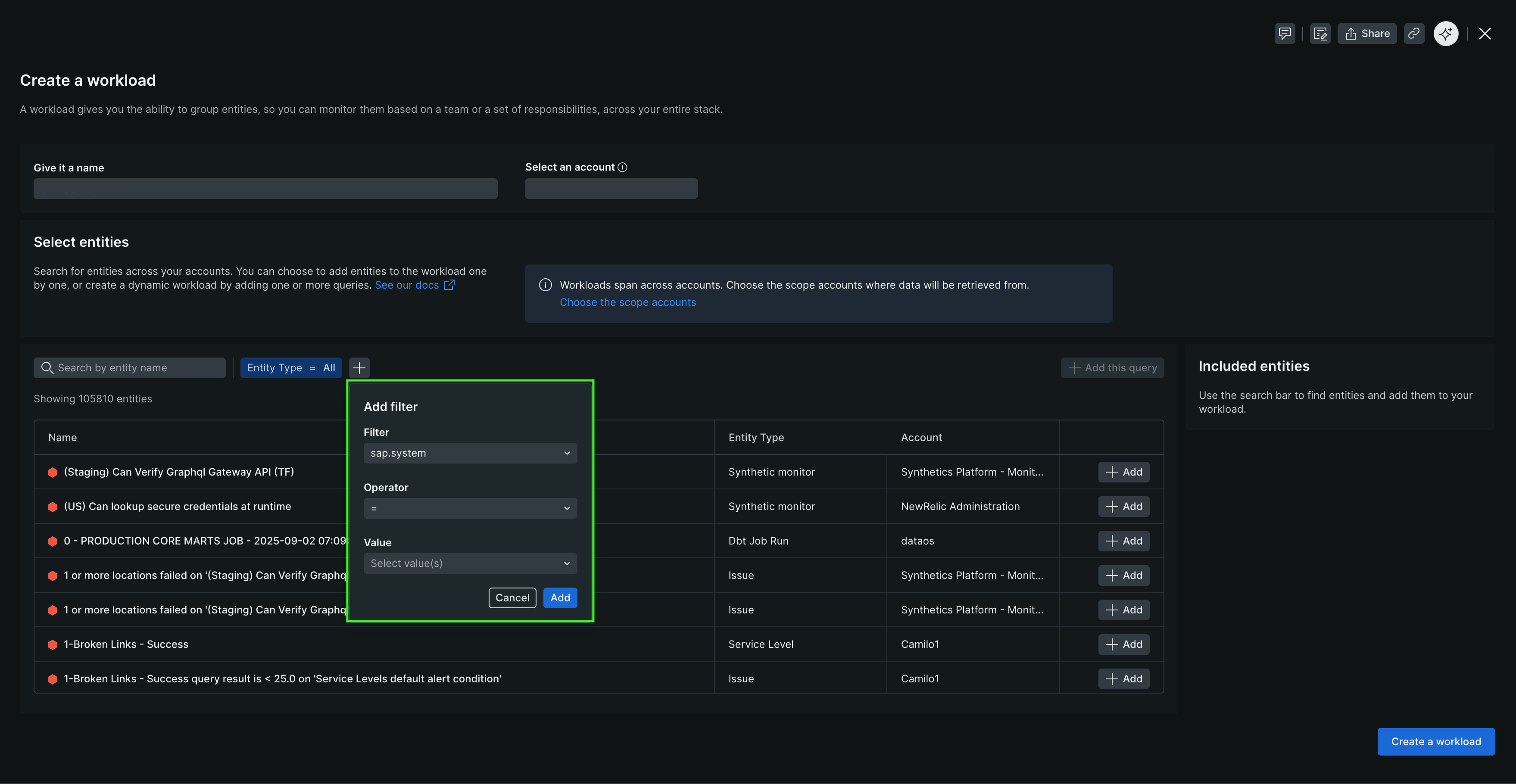
Seleccione + Add this query para agregar la consulta a su workload definition.
Seleccione Create a workload.
Su nuevo workload aparece en All entities e incluye todas las entidades etiquetadas con su SAP system.
Instalar paquete de servicio
Service packs se entregan como archivos .SAR que siguen la convención de nomenclatura K-<Version Number>SP<SP Number>IN<Software Component>.SAR (por ejemplo, K-240SP01INNEWR.SAR).
- Utilice la transacción
SPAMpara instalar el service pack. - Cargue el nuevo configuration template desde client 000.
- Vaya a Install New Release and Patch > Copy Template Tables desde Client 000.
- Genere el nuevo data provider configurations desde Install New Release and Patch > Generate Configuration for New Data Providers.
- Verifique la instalación desde Install New Release and Patch > Verify Installation Completeness.